Screenpresso does not start with windows
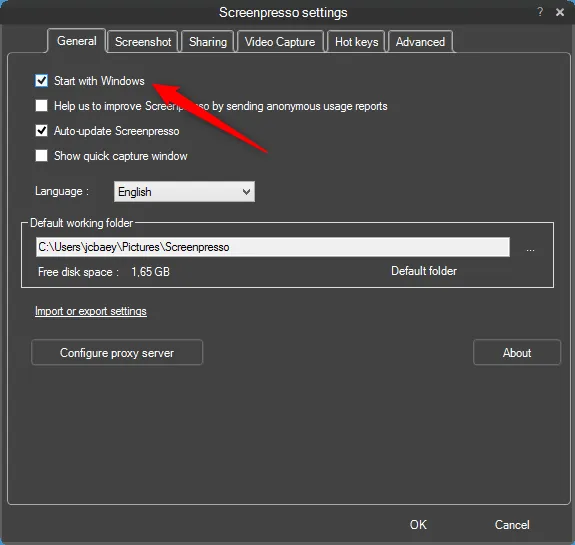
- Make sure the option is checked in the settings (default):
-
If it is checked, uncheck the option then close the settings window. Open the settings again and check the option.
-
When the option is checked, Screenpresso adds an entry in Windows registry at one of the following locations:
-
Computer\HKEY_CURRENT_USER\Software\Microsoft\Windows\CurrentVersion\Run(for installation in user profile) -
Computer\HKEY_LOCAL_MACHINE\Software\Microsoft\Windows\CurrentVersion\Run(for installation in Program Files) -
You can check with Windows regedit.exe tool if the entry is present. If not, you may add it by hand (if unchecking and checking the option doesn’t work):
-
Add a new string value “Screenpresso” with the path of Screenpresso, either:
"C:\Users\<user>\AppData\Local\Learnpulse\Screenpresso\Screenpresso.exe" --hideworkspace"C:\Program Files\Learnpulse\Screenpresso\Screenpresso.exe" --hideworkspace
-
-
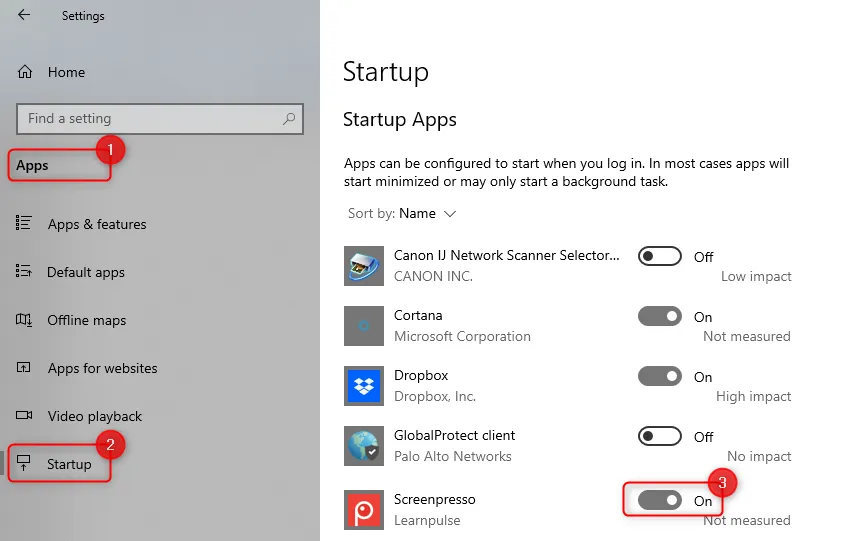
On Windows 10 or later, check startup is not disabled at the operating system level: